

Available Widgets
You can activate any of the following modules from the Widget Menu (accessible by clicking on the plus icon in the workspace tab).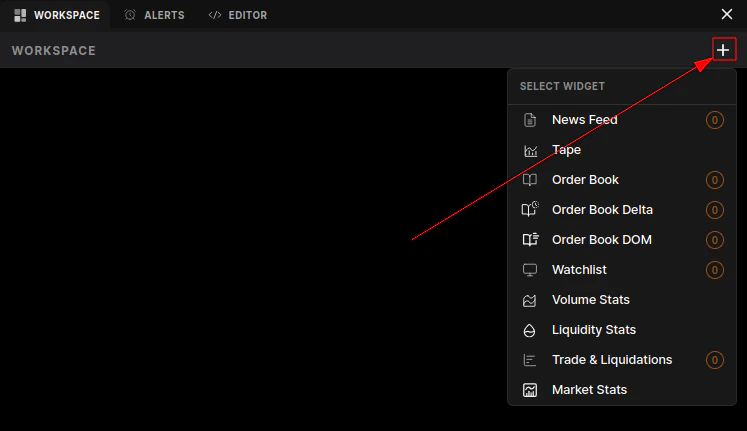
📰 Market Intelligence
- News Feed: A real-time stream of relevant market news and social sentiment. Stay ahead of catalysts that drive prediction market outcomes. Read more about News Feed →
📊 Order Flow & Liquidity
- Tape: The raw, unfiltered feed of all executed trades. Use this to spot “whale” activity and immediate buying or selling pressure. Read more about The Tape →
- Order Book: View the active limit orders (Bids and Asks) currently waiting to be filled. Essential for finding entry and exit liquidity. Read more about Order Book →
- Order Book Delta: A powerful momentum indicator that visualizes the net difference between aggressive buyers and sellers over a specific timeframe. Read more about OB Delta →
- Order Book DOM (Depth of Market): A visual heatmap or ladder view of the order book, allowing you to see “walls” of support and resistance at a glance. Read more about DOM →
📉 Analytics & Stats
- Volume Stats: detailed breakdown of trading volume, often split by “Maker” vs “Taker” or by time intervals (1m, 5m, 1h). Read more about Volume Stats →
- Liquidity Stats: Metrics tracking market depth and slippage risks. Crucial for larger traders who need to know how much size the market can absorb. Read more about Liquidity Stats →
- Market Stats: High-level overview of the selected market, including 24h Change, Open Interest, and Total Volume. Read more about Market Stats →
⚡ Activity Tracking
- Trade & Liquidations: A combined feed showing executed trades alongside significant liquidation events (if applicable to the specific venue/market type). Read more about Trade & Liqs →
- Watchlist: Your personalized dashboard of markets you are tracking. Monitor price changes and status across multiple prediction markets simultaneously. Read more about Watchlist →
Customizing Your Workspace
-
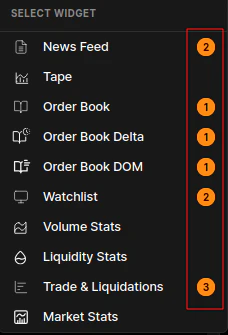
Add Widgets: Add one or more widgets from the Widget Menu (number of widgets added is shown beside the widget selection).
- Arrange: Drag the widget header to move it anywhere on the screen.
- Resize: Grab the corner of any widget to scale it up or down.