

Chrome
Chrome
Check your Graphics Feature Status
Open a new tab in Chrome and type 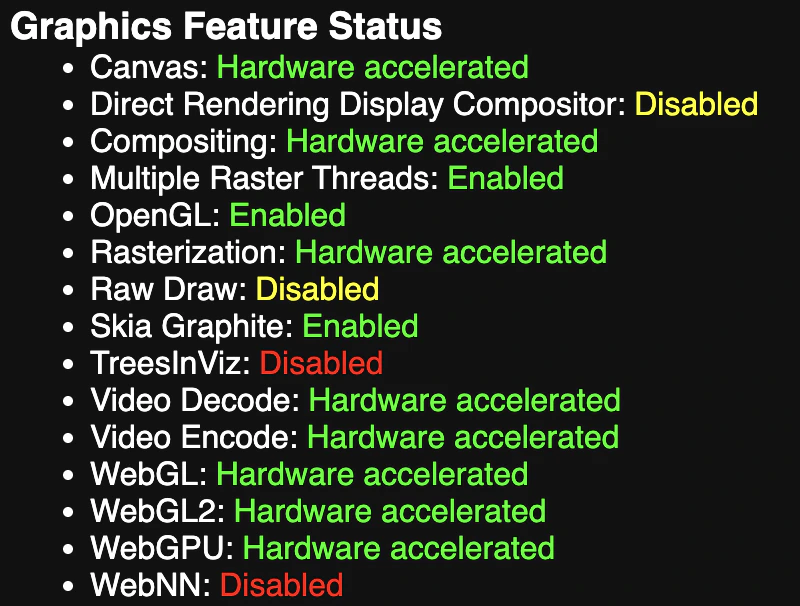
chrome://gpu into the address bar. Review the Graphics Feature Status list. If items like WebGL, WebGL2, or Hardware Accelerated are listed as “Disabled” or “Software only,” proceed to the steps below.Override the Software Rendering List
Chrome sometimes “blocklists” certain GPU models or drivers for stability. You can manually bypass this:
- Navigate to
chrome://flagsin your address bar. - Search for Override software rendering list (or
#ignore-gpu-blocklist). - Set the dropdown menu to Enabled.
- Click the Relaunch button that appears at the bottom of the page.
Enable WebGL Extensions
- In the address bar, type
chrome://flagsand press Enter - In the search bar, type
WebGL - Find
WebGL Draft Extensionsand set the dropdown menu next to it toEnabled - Find
WebGL Developer Extensionsand set the dropdown menu next to it toEnabled - Click the
Relaunchbutton that appears at the bottom of the page
Enable Skia Graphite
If you are using modern GPUs (such as NVIDIA 30-series), enabling the Skia rendering engine could resolve the issue:
- Go to
chrome://flags. - Search for Skia Graphite.
- Set it to Enabled.
- Relaunch the browser.
Verify Driver and Browser Updates
- Update Drivers: For NVIDIA users, ensure you are using the latest “Game Ready” or “Studio” driver via GeForce Experience.
- Clear Cache: Go to Settings > Privacy and security > Clear browsing data and clear “Cached images and files.”
- Check WebGL Support: Visit a site like
webglreport.comto confirm that WebGL 2 is successfully supported and active in your current browser session.
Edge
Edge
Check Your Graphics Feature Status
Open a new tab in Edge and type:into the address bar. Review the Graphics Feature Status list. If items like WebGL, WebGL2, or Hardware Acceleration are listed as “Disabled” or “Software only,” proceed to the next steps.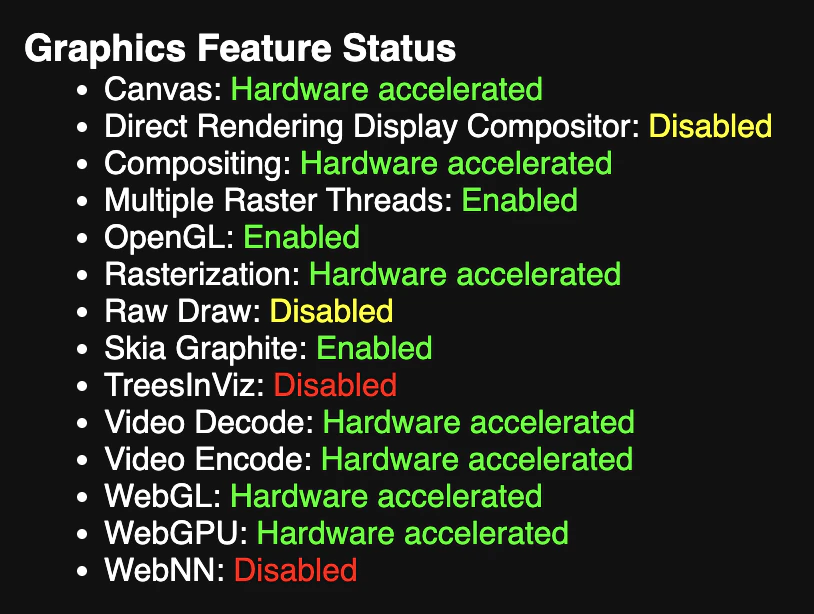
Override the Software Rendering List
Edge may “blocklist” certain GPU models or drivers for stability. You can manually bypass this:Navigate to Search for Override software rendering list (or
edge://flags in your address bar#ignore-gpu-blocklist).Set the dropdown menu to Enabled.Click the Restart button that appears at the bottom of the page.Enable WebGL Extensions
In the address bar, type In the search bar, type
edge://flags and press Enter.WebGL.Find WebGL Draft Extensions and set the dropdown menu next to it to Enabled.Find WebGL Developer Extensions and set the dropdown menu next to it to Enabled.Click the Restart button that appears at the bottom of the page.Enable Skia Graphite
If you are using modern GPUs (such as NVIDIA 30-series), enabling the Skia rendering engine could resolve the issue: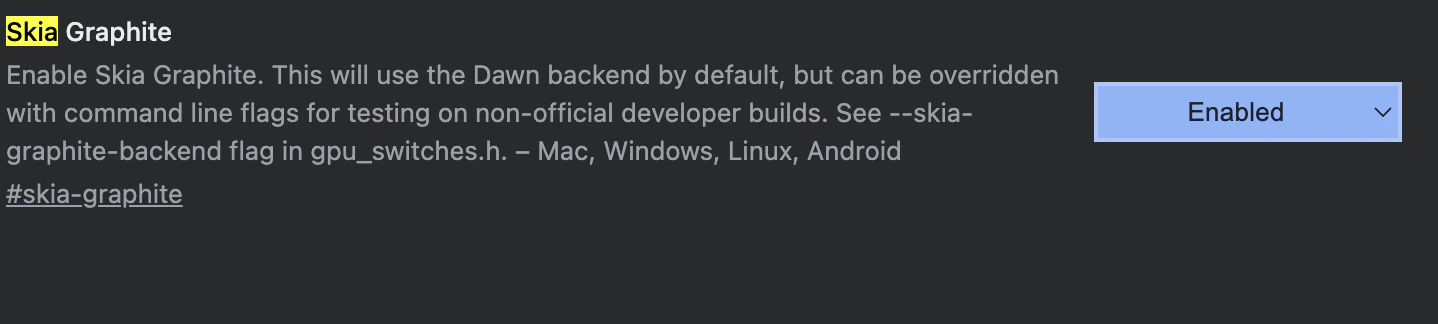
- Go to
edge://flags. - Search for Skia Graphite.
- Set it to Enabled.
- Relaunch the browser.
Verify Driver and Browser Updates
Update Drivers: Ensure you are using the latest GPU drivers (NVIDIA / AMD / Intel).Clear Cache: Go to Settings > Privacy, search, and services > Clear browsing data and clear “Cached images and files.”Check WebGL Support: Visit a site like webglreport.com to confirm that WebGL 2 is successfully supported and active in your current browser session.
Firefox
Firefox
Check your Graphics Status
Open a new tab in Firefox and type:into the address bar.Scroll down to the Graphics section and review the following:
- Compositing
- GPU Process
- WebGL 1 Driver Renderer
- WebGL 2 Driver Renderer
-
Compositing shows WebRender

-
GPU Process shows available

-
WebGL renderer information is present (e.g., Apple, NVIDIA, AMD, Intel)


Confirm Hardware Acceleration is Enabled
Open Settings in Firefox.Scroll to the Performance section.Uncheck Use recommended performance settings.Ensure Use hardware acceleration when available is enabled.Restart Firefox
Modify Advanced Graphics Settings
In the address bar, type:Press Enter and click Accept the Risk and Continue.Search for the following preferences and ensure they are set as follows:
webgl.disabled→ falselayers.acceleration.force-enabled→ truegfx.webrender.all→ true
Verify Driver and Browser Updates
Update Drivers: Ensure your GPU drivers (NVIDIA / AMD / Intel) are fully updated.Restart your computer after updating your drivers.Check WebGL Support: Visit webglreport.com to confirm that WebGL 2 is supported and active in your current browser session.